


ibis Paint
4.51.24K Reviews
App Specs
- Version
- 14.0.11
- Updated On
- License
- $15.99
- Downloads
- 100,000+
- Developer
- ibis inc.
- Categories
- Art & Design
- Platform
- Android, iOS
Screenshots
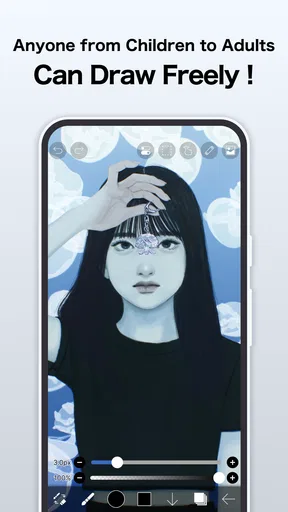
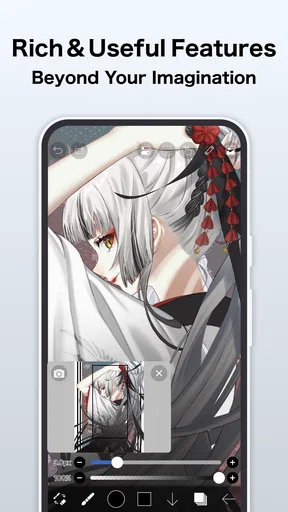
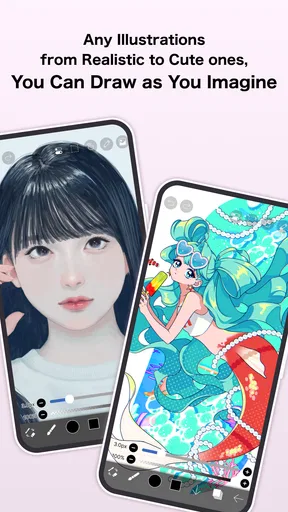
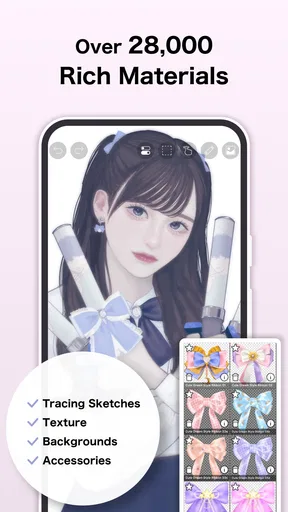
 Analysis by AppCompare
Have you ever found yourself doodling on the corners of your notebooks, only to wish you could bring those sketches to life digitally? Well, let me introduce you to ibis Paint.
A paid app, with a clear cost to consider
Before getting attached to the toolset, I would look carefully at the version and payment terms. This app is listed at $15.99, while its in-app purchases range from $1.99 to $49.99 per item. It is described as ad-free, but Prime Membership is required for all features. Those details make the buying decision less straightforward than simply asking whether a drawing app is free: the listed price and the membership requirement are both relevant to what you can use.
I would not assume that paying the listed price automatically unlocks every capability, or that the membership is included in it. If a particular tool or workflow matters to you, check how access to it is handled in the app before building a project around it. The practical question is not just “How much does it cost?” but “Does the access I am paying for cover the way I actually draw?” That distinction matters most if you plan to use the app regularly rather than test it casually.
For context, ibis inc. makes this art-and-design app, which has a 4.5 average from around 11,000 ratings and more than 100,000 installs. It is rated Everyone, and the current version is 13.1.18. I see those figures as useful context for a prospective buyer, not a promise that it will suit every artist. A strong general reception cannot tell you whether its interface fits your hand, whether its paid access fits your budget, or whether its tools match a specialized workflow.
Discovering the Art of Digital Drawing
So, I stumbled upon ibis Paint while scrolling through the app store, and boy, was it a delightful find! This app is like a playground for anyone who loves to draw or paint. Whether you're a seasoned artist or just a newbie looking to experiment, ibis Paint has got something for everyone.
Features Galore!
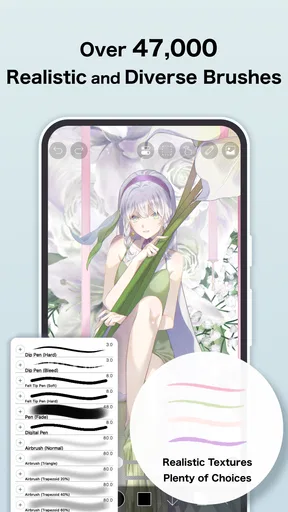
First off, the variety of tools this app offers is mind-blowing. We're talking over 300 different brushes, ranging from pens and airbrushes to oil brushes and flat brushes. Each brush has its own unique texture and feel, which is perfect for mimicking traditional drawing techniques.
But wait, there's more! The layering system is super intuitive. If you're familiar with Photoshop or any other graphic design software, you'll feel right at home. You can add, merge, and rearrange layers with ease, which is crucial for creating complex artworks. Plus, you can adjust the opacity and blending modes for each layer, giving you total creative control.
Worth Reading Before You Choose

Flipboard Shows What News Apps Must Do Beyond the Feed

Switching to Android Auto Means Rethinking Your Driving Routine

Google Calendar Makes a Crowded Week Easier to Manage

Ludo King Makes the Most of the Minutes Between Plans

Baby Panda World Brings Quick Play to Modern Phones, but Its Game Library Feels Busy

ESPN’s Live Game View Makes Following Close Games Easier
Making the tools work for your process
For me, the real benefit of having so many brushes is not that every drawing needs a different one. It is being able to settle on a small, repeatable kit: one brush for rough construction, one for clean contours, and another for broad colour or soft transitions. Once I know how a brush responds, I can spend less time hunting through choices and more time drawing. That is a better use of a large brush collection than switching tools just because another option is available.
I also recommend treating layers as a way to make decisions reversible, rather than simply as a place to put more detail. For a character sketch, I might keep the loose pose separate from the clean line work and colour. If the silhouette feels wrong, I can revisit the sketch without damaging the finished contours. For a simple icon, though, too many layers can make a tiny job harder to manage. A light touch is often quicker: separate only the parts I may realistically need to change.
Blending modes and opacity can help with controlled experiments, but they do not replace a clear plan for the artwork. I find it useful to test a colour or shading idea on a separate layer first, then decide whether it improves the image before merging anything. That small habit protects earlier work and makes it easier to compare alternatives. It is especially helpful when I am trying to make a drawing readable at a small size, where subtle texture can disappear and a strong outline may matter more.
Customization and Community
Now, let's talk about customization. The app allows you to record your drawing process, which is a fantastic feature if you want to share your techniques with others or just look back at your creative journey. And speaking of sharing, ibis Paint has a vibrant community. You can upload your artwork to their platform and get feedback from other artists. It's like having a mini art gallery in your pocket!
Another cool feature is the ability to import and export files in various formats. Whether you want to work on a project across different devices or share your work on social media, this feature has got you covered.
Using process recording and sharing thoughtfully
A recording of the drawing process can do more than make a satisfying time-lapse. I find it useful as a personal review: if a finished face looks stiff, watching the sequence can show whether I overworked the expression, changed the proportions late, or spent too long polishing details before checking the whole composition. It can also make a short demonstration easier to share than a long written explanation. I would treat it as a record of the visible drawing process, though, not as a substitute for saving the artwork itself.
Sharing to a community can be encouraging, but I would go in with a specific purpose. Posting a finished piece to invite reactions is different from asking for targeted feedback on line weight, colour balance, or readability. A focused question is more likely to produce useful advice than a general request for opinions. And if I am still experimenting, I may prefer to keep a study private until I am ready to show it; not every sketch needs to become a public post.
Import and export options are most valuable when they support a planned handoff. Before sending a piece to another app or sharing it, I would check that the chosen format preserves what I need. A flattened image is convenient for posting, while editable layers matter if I expect to continue revising the project. I would keep a working copy before making a final export, too. That is a simple safeguard against losing flexibility when a project is nearly finished.
Performance and Usability
Let's get into the nitty-gritty: performance. I was pleasantly surprised by how smooth the app runs. Even when working on larger files with multiple layers, I didn't experience any lag. It's optimized to make sure your creative flow isn't interrupted, which is a huge plus.
As for usability, the interface is clean and user-friendly. I found it easy to navigate through the various tools and options. Even if you're new to digital art, the app provides tutorials and guides to help you get started. It's like having your own personal art teacher guiding you along the way.
A realistic session from sketch to share
Imagine I have a few minutes on a commute or during a quiet break and want to turn a rough idea into a small illustration. I can begin with a loose pose or thumbnail, keep that draft apart from cleaner lines, and then try a limited set of colours on another layer. If the idea is working, I can refine it; if not, I can change direction without redrawing everything. Later, I can export a finished image for sharing or use the process recording to show how the sketch developed.
That scenario also shows where a phone-first drawing session can be less comfortable than a desktop setup. Detailed work may require careful zooming and panning, and a small screen can make it harder to judge the whole composition while focusing on a tiny area. I try to zoom out regularly and check the image at its intended viewing size. This catches proportions and contrast problems before I invest time in tiny details. If I am planning a long, precise illustration, I would first make sure the device and screen feel comfortable for that kind of work.
Beginners should not feel they have to master every control before making something. I would start with one canvas, a basic brush, a few layers, and a small finished goal, such as a sticker-like drawing or a simple portrait study. Then I would learn extra controls only when a real problem appears. Tutorials are helpful when they answer a question I have right now; trying to absorb every guide at once can make drawing feel like studying a settings menu instead of making art.
Where it sits beside other drawing apps
Compared with a basic sketching app, this one offers a more involved workspace: brushes, layers, opacity adjustments, blending modes, process recording, and ways to move finished work out of the app. That gives me room to develop an idea beyond a quick doodle. The trade-off is that a larger set of controls can take longer to learn than a deliberately minimal drawing pad. If all I want is to jot down a visual reminder, a simpler app may be faster and less distracting.
Against desktop-oriented tools such as Photoshop, the familiar ideas of layers and blending make the transition feel less alien, but I would not treat a mobile art app as a complete replacement for every computer workflow. Screen space, input comfort, and the demands of a large professional project can change what feels practical. For many personal illustrations, studies, and social posts, a focused mobile workflow is convenient. For work that depends on a particular desktop process or extensive finishing, I would choose the tool that fits that job rather than assuming one app must do everything.
There is also a useful difference between a dedicated drawing tool and a general design app. If my main task is to draw lines, build up colour, and revise an illustration in layers, ibis Paint’s art-focused approach makes sense. If I mainly need to arrange text, shapes, and page layouts, a design-oriented alternative may be the more direct route. The best choice depends on the output I am trying to make, not on how many tools an app can display.
Who is likely to get the most from it?
I would recommend considering this app if you enjoy drawing on a mobile device and expect to make more than occasional marks. It suits learners who want room to grow from simple sketches into layered illustrations, hobby artists who like trying different brush textures, and creators who want to show their drawing process or share finished work. Its range can also be useful for someone who already understands layers and wants a familiar approach in a more portable setting.
I would be more cautious if you only want a free, no-commitment doodling tool, since the listed purchase price and membership requirement deserve attention before you settle into a routine. It may also be the wrong fit if you dislike exploring menus, need the comfort of a larger display for detailed work, or spend most of your time on layout rather than drawing. For a beginner, the app can be approachable, but the breadth of options can still feel like a lot. Starting with a small set of tools is the best way I know to keep that learning curve manageable.
One practical question is whether it is suitable for casual use as well as serious practice. I think it can be both, as long as the project is scaled to the device and the access terms work for you. A quick colour study or a small character sketch does not require an elaborate workflow. A more ambitious piece can benefit from layers and careful revisions. I would not judge the app by whether it can replace a full studio setup; I would judge it by whether it makes the kind of drawing I actually do easier to begin and finish.
The Final Stroke
All in all, ibis Paint is a fantastic tool for anyone interested in digital art. With its extensive array of features, user-friendly interface, and supportive community, it's no wonder it's become a favorite among artists worldwide. Whether you're sketching for fun or working on a professional project, ibis Paint provides everything you need to unleash your creativity.
If you're itching to try out digital art or looking for a robust app to add to your collection, give ibis Paint a go. You might just find yourself spending hours immersed in the world of digital creativity. Happy drawing!
My buy-or-skip verdict
My recommendation is conditional rather than automatic. I see real value here for someone who will draw often enough to benefit from brushes, layer-based revisions, and the ability to share a process as well as an image. For that person, learning the interface can pay off across many small projects. If I were deciding, I would first match the purchase and Prime Membership requirement to the features I intend to use, then consider whether drawing on my device feels comfortable for the sort of work I want to make.
If I only wanted to make the occasional quick mark, I would skip a paid, feature-rich setup and choose a simpler option that suits that limited need. If I wanted intensive production work, I would compare the mobile workflow with the desktop tools I already use rather than buying on the assumption that the app will cover every specialized task. But for a mobile artist who wants a capable drawing space and is happy to build a personal workflow gradually, ibis Paint is worth serious consideration. The best reason to choose it is not its long tool list; it is the chance to make a repeatable process that helps you finish drawings you care about.
Pros
- Highly customizable brushes and tools.
- User-friendly interface for beginners.
- Extensive library of tutorials.
- Fast performance with large canvases.
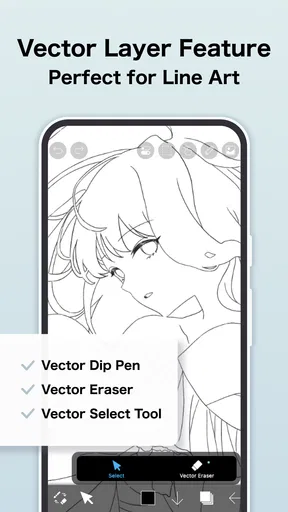
- Supports layers and multiple formats.
Cons
- Ads can be intrusive in free version.
- Some features locked behind paywall.
- Occasional lag on older devices.
- Limited text editing capabilities.
- Requires internet for some features.
FAQs for ibis Paint
What is ibis Paint, and what are its main features?
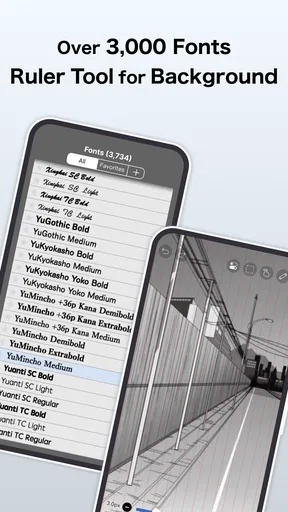
ibis Paint is a popular digital art application available for both Android and iOS. It offers a wide range of tools, including over 2500 materials, 800 fonts, 379 brushes, 66 filters, and 27 blending modes. The app is designed for ease of use with features like stroke stabilization, ruler tools, and clipping mask functionality, making it ideal for both beginners and experienced artists.
Is ibis Paint free to use, and are there any in-app purchases?
ibis Paint is free to download and use, but it also offers in-app purchases and a subscription model. The free version includes advertisements, but users can opt for the ad-free version or unlock additional features through the ibis Paint X Prime subscription. This premium version provides access to advanced tools and exclusive materials.
What are the system requirements for installing ibis Paint?
For Android users, ibis Paint requires Android 4.1 or higher, while iOS users need iOS 11.0 or later. It’s compatible with both smartphones and tablets. Due to the app's extensive features, a device with a decent amount of RAM and processing power is recommended for the best performance and user experience.
Can I use ibis Paint for professional artwork creation?
Yes, ibis Paint is suitable for professional artwork creation. It offers high-resolution canvas support and a variety of professional-grade tools. Many artists use it to create illustrations, comics, and animations. The app's extensive feature set allows for detailed and complex artwork, making it a viable option for professionals.
How does ibis Paint support community engagement among artists?
ibis Paint encourages community engagement by allowing users to share their artwork and access tutorials directly within the app. It has a supportive online community where artists can connect, share tips, and learn new techniques. The app also features a drawing process recording function, enabling users to share time-lapse videos of their creative process with the community.


